Purchase Entry
Watch the full video tutorial for Purchase Entry in ALZERP Cloud ERP
The Purchase Entry feature in ALZERP facilitates the recording of purchased items and their associated costs. It allows users to manage both local and import purchases, ensuring accurate inventory updates and financial transactions.
Key Features:
- Product Selection: Choose from existing products or add new ones during purchase entry.
- Recent Purchase Information: View past purchase details for the selected product, including dates, invoice numbers, quantities, and unit prices.
- VAT & Discount for Sales: Specify item’s selling VAT rate (ie, 15%) and discount amount
- Cost Calculation: Automatically calculates unit prices (excluding and including VAT), subtotal, and tax amount.
- Selling Price Definition: Set unit selling prices for SR, wholesale, and retail.
- Purchase Summary: View a summary of the purchase, including subtotal (with and without VAT), unit prices, tax details, and total amount.
- Added Items Table: Displays a list of added items with details like quantity, unit price, subtotal, tax, and total amount.
- Purchase Data Entry:
- Local Purchase: Enter purchase date, local invoice number, supplier name (existing or new), other costs, payable amount, paid amount, and upload relevant files.
- Import Purchase (LC): Enter LC date and number, PO number, supplier name, exporter details (CNF Agent, Cost), local CNF agent details (CNF Cost), cargo cost, other costs, total extra cost, payable amount, paid amount, and upload relevant files.
- Saved Purchase Data: View a searchable table with all saved local and import purchases. Filters allow searching by date, invoice/LC number, and supplier name. Export to PDF file or Print the Purchase-Invoice for documentation purpose.
- History Data Columns: Sl. No., Action, Date, Type (Local/LC), Supplier, Invoice/LC Number, Total Amount, Paid Amount, Discount, Due Amount, Created By.
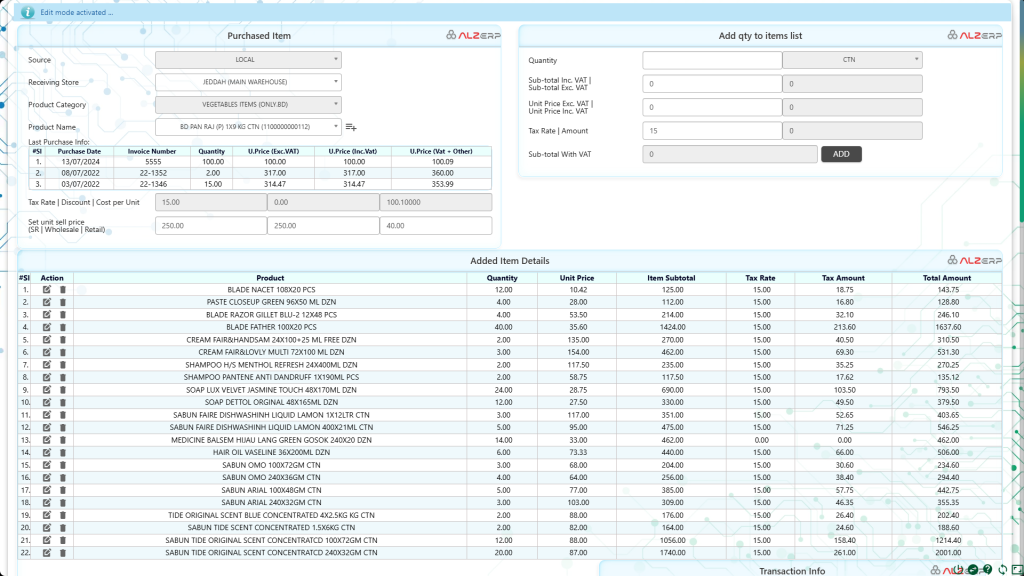
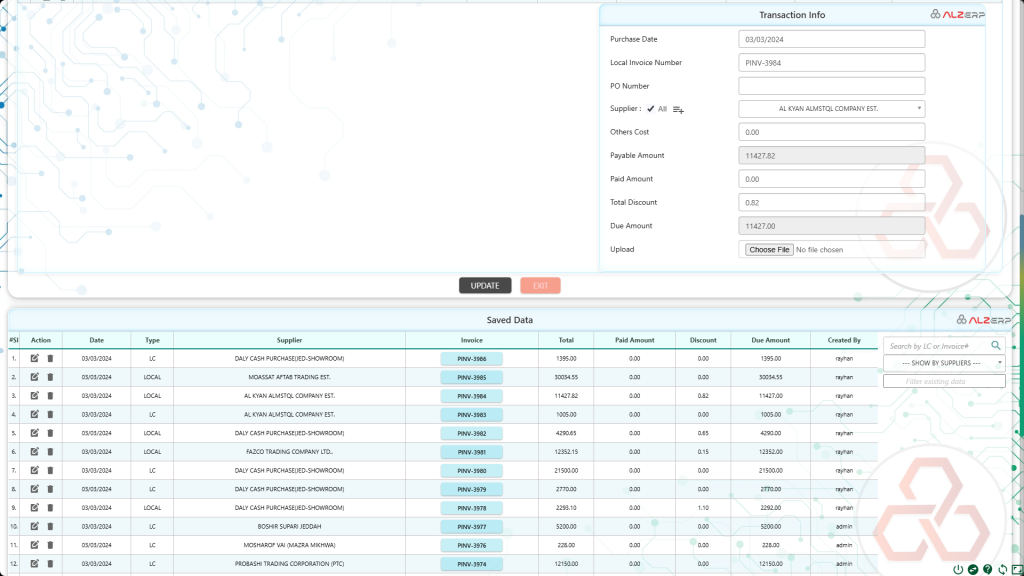
The Purchase Entry features in ALZERP cloud ERP software facilitate the recording and management of received items and associated purchase details. Here’s a detailed explanation of the various features and form fields:
Received Items: Purchase Details Part
- Receiving Store:
- Example: JEDDAH (MAIN WAREHOUSE)
- The store where the received items will be stocked.
- Product Category:
- Example: VEGETABLES ITEMS (ONLY.BD)
- Select the category of the product being received.
- Product Name:
- Example: BD PAN RAJ (P) 1X9 KG CTN (1100000000112)
- The name and code of the product. New products can be added during the purchase entry.
- Top 3 Purchase Information of the Selected Product:
- Displays the last three purchase records of the selected product for reference.
- Columns include: Purchase Date, Invoice Number, Quantity, U.Price (Exc. VAT), U.Price (Inc. VAT), U.Price (Vat + Other).
- Show VAT% (Tax Rate):
- Displays the VAT percentage applicable.
- Show Discount%:
- Displays any applicable discount percentage.
- Cost per Unit (for existing stock):
- Displays the cost per unit of the existing stock.
- Set Unit Selling Price for Different Types:
- SR: Selling Representative price.
- Wholesale: Price for wholesale customers.
- Retail: Price for retail customers.
- Purchased Quantity:
- Input the quantity of items purchased.
- Sub-total:
- Inc. VAT: Subtotal including VAT.
- Exc. VAT: Subtotal excluding VAT.
- Unit Price:
- Exc. VAT: Unit price excluding VAT.
- Inc. VAT: Unit price including VAT.
- VAT/Tax Rate:
- The applicable tax rate.
- VAT/Tax Amount:
- The calculated VAT amount.
- Added Item Details in a Table:
- Columns: Sl, Action, Product, Quantity, Unit Price, Item Subtotal, Tax Rate, Tax Amount, Total Amount.
- This table shows the items added to the purchase entry along with their details.
Purchase Master Data: Transaction Info
Two types of supply sources can be managed: LOCAL and LC (Letter of Credit).
For Local Purchase:
- Purchase Date:
- Example: 03/03/2024
- Local Invoice Number:
- Example: PINV-3984
- PO Number:
- Purchase Order number.
- Supplier:
- Example: AL KYAN ALMSTQL COMPANY EST.
- Option to add a new supplier if not listed.
- Others Cost:
- Additional costs incurred.
- Payable Amount:
- Total amount payable.
- Paid Amount:
- Amount already paid.
- Total Discount:
- Example: 0.82
- Total discount received.
- Due Amount:
- Example: 11427.00
- Amount still due.
- Upload File:
- Option to upload related files (e.g., invoice copy).
For LC/Import Purchase:
- LC Date:
- Example: 03/03/2024
- LC Number:
- Example: PINV-3984
- PO Number:
- Purchase Order number.
- Supplier:
- Example: AL KYAN ALMSTQL COMPANY EST.
- Option to add a new supplier if not listed.
- Exporter CNF Agent:
- The agent handling the shipment from the exporter.
- Exporter CNF Cost:
- Cost incurred for the CNF agent.
- Local CNF Agent:
- The local agent handling the shipment.
- CNF Cost:
- Cost incurred for the CNF agent locally.
- Cargo Cost:
- Cost of transporting the cargo.
- Others Cost:
- Any additional costs incurred.
- Total Extra Cost:
- Sum of all extra costs.
- Payable Amount:
- Total amount payable.
- Paid Amount:
- Amount already paid.
- Total Discount:
- Total discount received.
- Due Amount:
- Amount still due.
- Upload File:
- Option to upload related files (e.g., invoice copy).
Viewing and Managing Saved Data
A comprehensive table shows all LC and Local Purchase transactions, allowing for efficient management and review.
- Filter Options:
- By Date of Transaction.
- By LC or Invoice Number.
- By Supplier Name.
- Table Columns:
- #Sl: Serial number.
- Action: Actions like edit or delete.
- Date: Date of transaction.
- Type: Type of purchase (Local or LC).
- Supplier: Supplier name.
- Invoice: Invoice number.
- Total: Total amount.
- Paid Amount: Amount already paid.
- Discount: Discount received.
- Due Amount: Amount still due.
- Created By: Name of the user who created the entry.
Benefits:
- Accurate Inventory Management: Ensures proper stock updates based on purchases.
- Efficient Purchase Recording: Streamlines the process of recording purchase transactions.
- Cost Tracking and Analysis: Provides detailed cost breakdowns for purchased items.
- Financial Transparency: Enables accurate calculation of payable and due amounts.
- Improved Supplier Management: Facilitates data management for suppliers.
- Enhanced Search and Filter Options: Enables efficient retrieval of past purchase data.
These features ensure that the purchase process is streamlined, and all necessary details are captured and managed efficiently within the ALZERP cloud ERP software.