ZATCA Compliance: Online QR Code Generator & Developer Portal Integration Guide
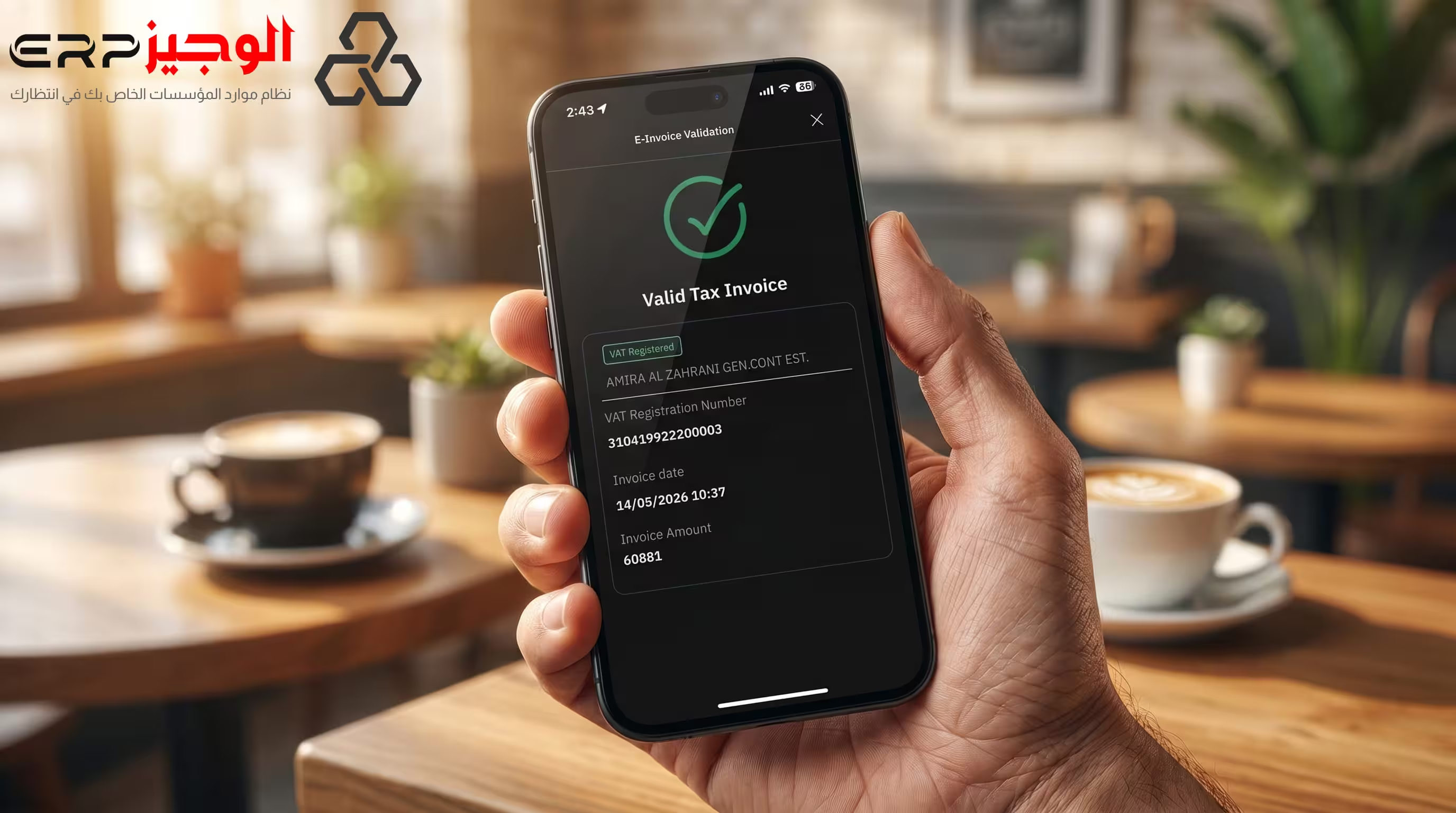
ZATCA Compliance: Online QR Code Generator & Developer Portal Integration Guide
Every VAT-registered business in Saudi Arabia is now subject to ZATCA's mandatory e-invoicing (Fatoora) requirements. The law is clear: invoices must contain a cryptographically signed QR code, be issued through a compliant system, and — for Phase 2 businesses — be cleared through ZATCA's API before reaching the buyer. Non-compliance penalties reach SAR 50,000 per violation.
This guide gives you everything in one place: a clear explanation of ZATCA requirements, how to generate a ZATCA QR code online for free, how to use the ZATCA developer portal for API testing, and a step-by-step go-live checklist.
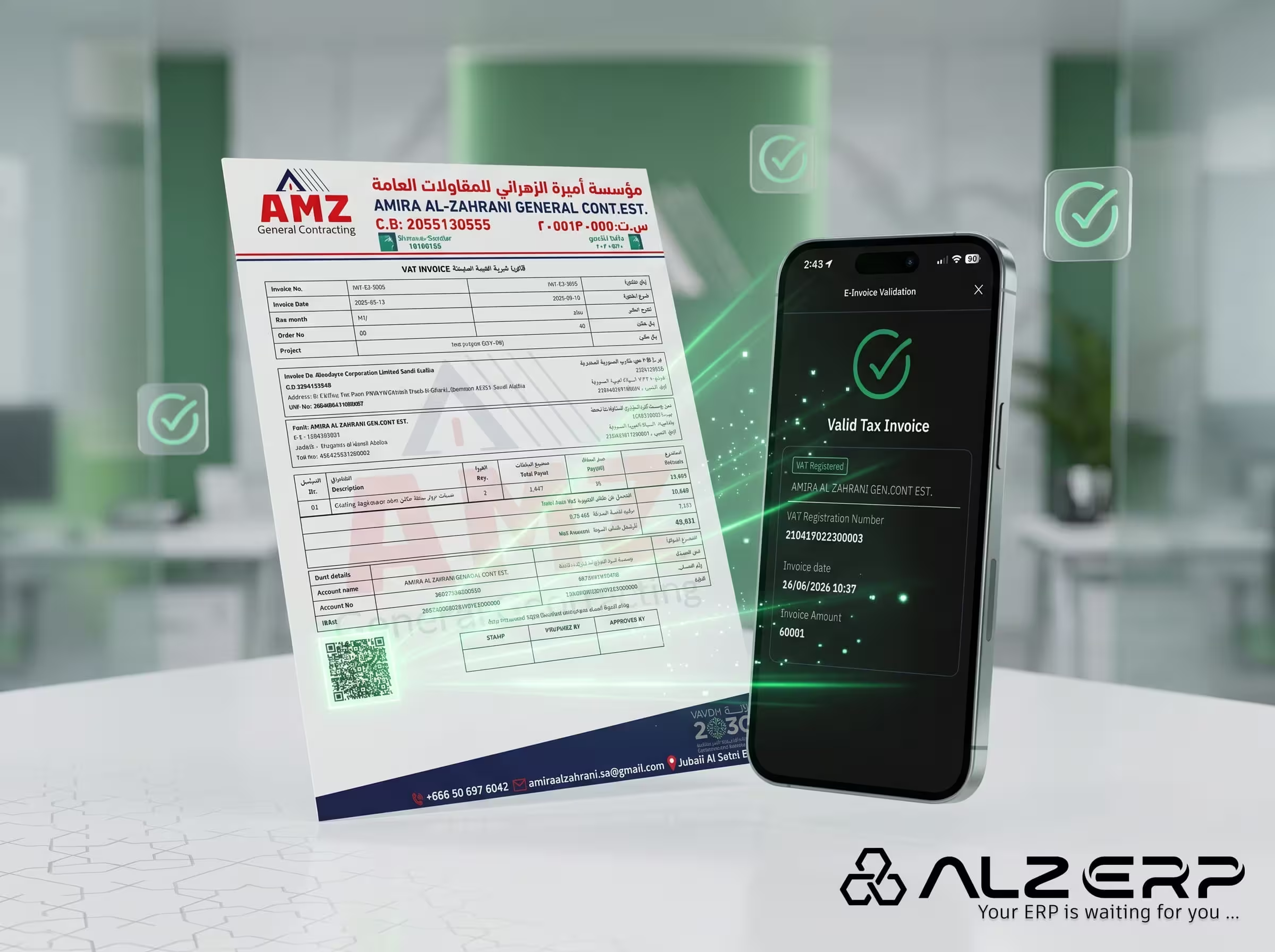
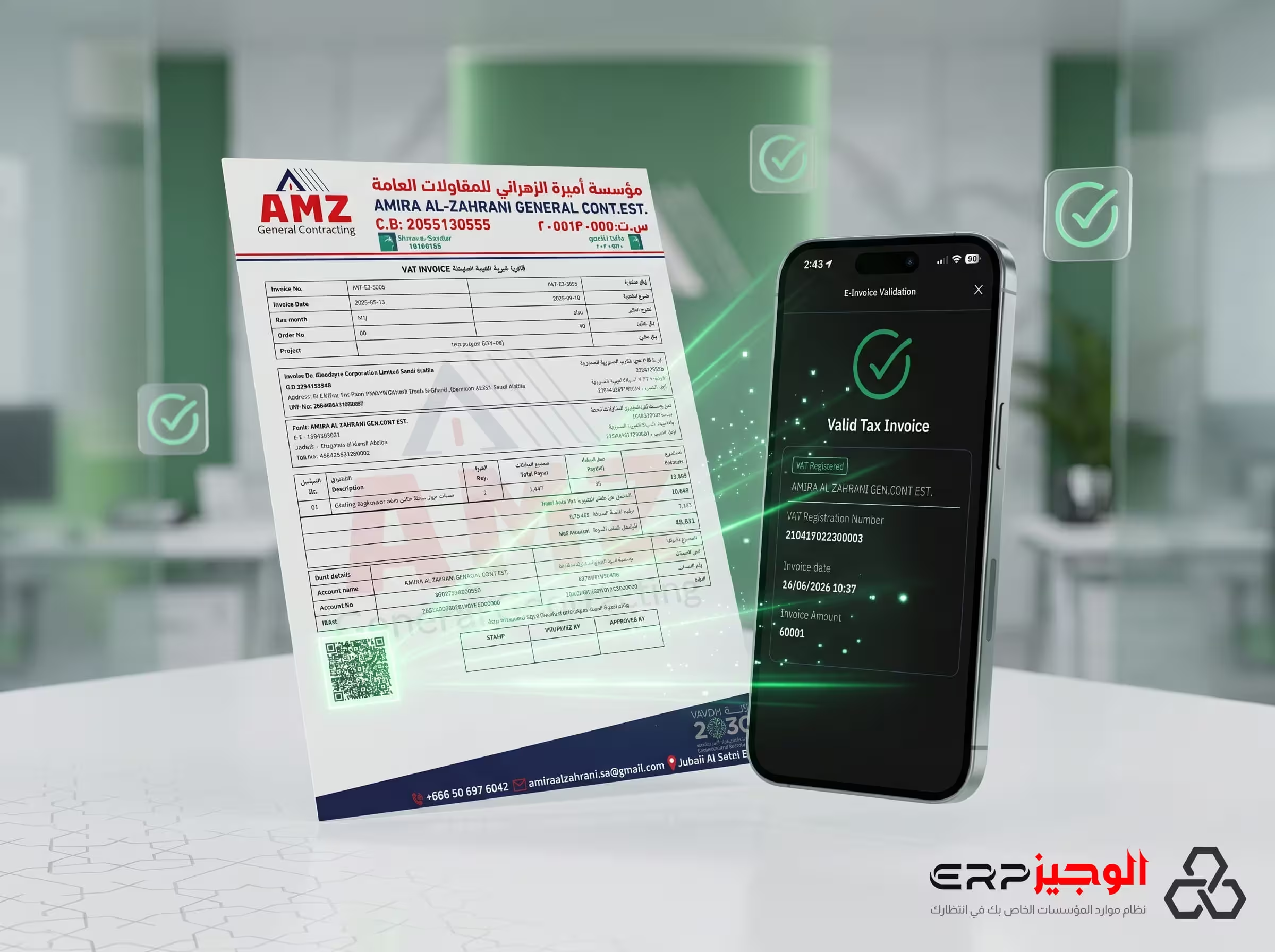
[Image: ZATCA-compliant invoice with QR code generated online]
ZATCA E-Invoicing: Phase 1 vs Phase 2
| Requirement | Phase 1 (Generation) | Phase 2 (Integration) |
|---|---|---|
| Effective date | December 4, 2021 (all VAT-registered) | Rolling waves from January 2023 |
| Invoice format | Electronic format (PDF/A-3 or XML) | UBL 2.1 XML (structured data) |
| QR code | Required (TLV Base64 encoded) | Required + cryptographic stamp |
| ZATCA API submission | Not required | Mandatory — before invoice delivery |
| UUID | Recommended | Mandatory |
| Digital signature | Not required | Mandatory (ECDSA-256) |
| Invoice types | Simplified (B2C) + Standard (B2B) | Same + clearance for B2B, reporting for B2C |
For the official ZATCA mandate, refer to the ZATCA e-invoicing portal.
What Makes a ZATCA-Compliant Invoice?
A ZATCA-compliant invoice — regardless of phase — must contain these mandatory fields:
- Seller name (as registered with ZATCA)
- VAT Registration Number (15 digits, starting and ending with 3)
- Invoice date and time (ISO 8601 format)
- Invoice number (sequential, unique)
- UUID (Universally Unique Identifier)
- Line items: description, quantity, unit price, VAT rate, VAT amount
- Total amount excluding VAT
- Total VAT amount
- Total amount including VAT
- QR code (TLV Base64 encoded, Phase 2 adds hash and signature)
The QR code itself encodes five mandatory TLV (Tag-Length-Value) fields:
- Tag 1: Seller Name
- Tag 2: VAT Registration Number
- Tag 3: Invoice Date & Time (ISO 8601)
- Tag 4: Total Amount (inclusive of VAT)
- Tag 5: VAT Amount
How to Generate a ZATCA QR Code Online (Free)
The fastest way to generate and test a ZATCA-compliant QR code is ALZERP's free online tool. It handles the TLV encoding, Base64 conversion, and QR rendering automatically — no software installation, no account required.
Step 1: Open the Generator
Navigate to the ALZERP free ZATCA QR code generator online. It opens immediately in your browser — desktop or mobile.
Step 2: Choose Invoice Type
Select Simplified (B2C) for cash sales to retail customers, or B2B (Standard) for business-to-business invoices. Each type generates a different invoice layout and QR structure.
Step 3: Enter Seller Information
Fill in your Company Name, VAT Registration Number (15 digits), Commercial Registration Number, and address (Street, Building Number, City, District, Post Code — exactly as registered in your national address).
[Image: ZATCA QR code generator form showing seller information fields]
Step 4: Add Invoice Lines
Add your products or services with quantity and unit price (inclusive of VAT). The system automatically calculates the amount excluding VAT (15% VAT rate), VAT amount, and total. Add as many line items as needed.
Step 5: Generate & Print
Click Generate & Print Invoice. The system instantly produces:
- A ZATCA-compliant QR code (TLV Base64 encoded, scannable by the ZATCA Fatoora verification app)
- A print-ready invoice in 80mm thermal receipt format (for POS printers) or A4 PDF
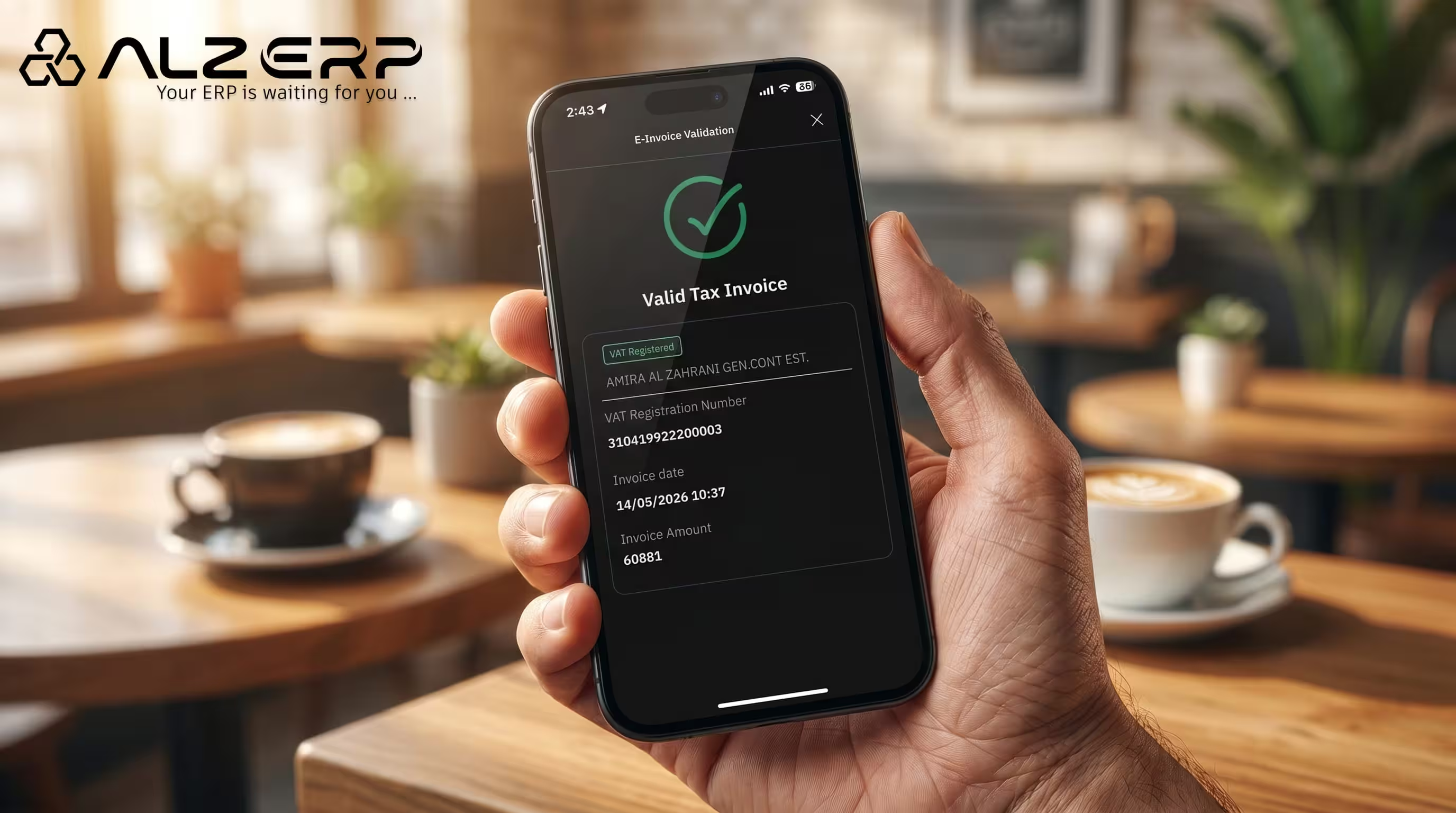
The QR code can be verified using the ZATCA official Fatoora app — scan it and the TLV data displays correctly.
Using the ZATCA Developer Portal for API Testing
The ZATCA developer portal is the official sandbox environment where ERP vendors and developers test Phase 2 clearance integration before going live. Here is the process:
Step 1: Register on the Developer Portal
Create an account on developer.zatca.gov.sa using your company's VAT number. You will receive sandbox credentials separate from your production ZATCA account.
Step 2: Generate a CSID (Cryptographic Stamp Identifier)
The CSID is the digital certificate that signs your invoices. In the sandbox environment, you submit a Certificate Signing Request (CSR) — a cryptographic key pair — to ZATCA. ZATCA returns a compliance CSID (CCSID) for testing and a production CSID (PCSID) once your system passes compliance checks.
Your ERP system (ALZERP handles this automatically) generates the CSR using your VAT number, business details, and the device serial number of your ERP instance.
Step 3: Test Clearance API (B2B Invoices)
For B2B invoices (Standard invoices), Phase 2 requires real-time clearance: your ERP sends the signed XML invoice to ZATCA's API before the invoice is delivered to the buyer. ZATCA validates it, stamps it, and returns a clearance reference. The test endpoint:
POST https://gw-fatoora.zatca.gov.sa/e-invoicing/simulation/invoices/clearance/single
Content-Type: application/json
Authorization: Basic [CCSID:CSID_SECRET_base64]
Step 4: Test Reporting API (B2C Invoices)
For Simplified (B2C) invoices, Phase 2 requires reporting within 24 hours (not real-time clearance). Your ERP sends the signed invoice XML to ZATCA's reporting endpoint. ZATCA accepts it and returns a hash-verified response.
Step 5: Receive Production Credentials
Once your sandbox tests pass ZATCA's validation, submit for production onboarding. ZATCA issues production CSIDs. Your ERP switches to the production API endpoint, and you are live with Phase 2 compliance.
Embedding the ZATCA QR Code in an ERP Invoice: ALZERP Example
In ALZERP, ZATCA QR code generation is fully automated. Here is what happens when your user clicks "Save Invoice":
- ALZERP generates a UUID for the invoice.
- The system constructs the TLV data structure from the invoice fields (seller name, VAT, date, amounts).
- The TLV data is Base64 encoded.
- For Phase 2: the invoice XML is digitally signed using the ECDSA-256 algorithm with your CSID private key.
- The signed XML is submitted to ZATCA's clearance API.
- Upon clearance approval, the clearance reference and ZATCA's stamp are embedded in the invoice.
- The print-ready PDF with QR code is generated and available for download or printing.
Your team only interacts with Step 1 (entering invoice data) and Step 7 (printing). Everything between is handled automatically. Learn how to customize your invoice design in ZATCA e-Invoice customization guide.
Online ZATCA QR Code Generator Comparison
| Tool | Phase 1 QR | Phase 2 Support | Free | Print (80mm/A4) | Arabic UI |
|---|---|---|---|---|---|
| ALZERP Free Tool | ✅ Accurate TLV | ✅ (via subscription) | ✅ Yes | ✅ Both | ✅ Full RTL |
| Generic QR tools | ❌ Not ZATCA-specific | ❌ No | ✅ Yes | ❌ No | ❌ No |
| ZATCA official testing tool | ✅ Reference only | ✅ Sandbox only | ✅ Yes | ❌ No printing | ⚠️ Partial |
| Excel/Word macro generators | ⚠️ Risk of errors | ❌ No | ✅ Yes | ⚠️ Manual | ⚠️ RTL issues |
ZATCA E-Invoicing Go-Live Checklist (12 Items)
- ✅ Confirm your ZATCA Phase 2 onboarding wave date with ZATCA (check the Fatoora portal).
- ✅ Register your ERP solution device on the ZATCA developer portal and generate your CSR.
- ✅ Obtain and store your Compliance CSID (CCSID) from ZATCA sandbox.
- ✅ Run end-to-end clearance tests with at least 10 sample B2B invoices in the sandbox environment.
- ✅ Run reporting tests with at least 10 sample B2C simplified invoices.
- ✅ Verify QR code readability using the official ZATCA Fatoora mobile verification app.
- ✅ Confirm all mandatory fields are present in every invoice template (UUID, seller VAT, hash).
- ✅ Obtain your Production CSID (PCSID) after successful sandbox testing.
- ✅ Switch ERP API endpoint from sandbox to production.
- ✅ Issue the first production invoice and verify clearance response from ZATCA.
- ✅ Train all invoice-issuing staff on the new process and system.
- ✅ Set up a compliance monitoring dashboard — track clearance failures and retry them within the 24-hour window.
Common ZATCA Non-Compliance Mistakes and Fines
- Missing or corrupted QR code: Fine up to SAR 10,000 per invoice. Most common cause: manually editing an invoice PDF after generation, which breaks the Base64 encoding.
- Issuing invoice before clearance (B2B): Fine up to SAR 50,000. Never send a B2B invoice to a customer before receiving the ZATCA clearance reference.
- Wrong VAT number format: The number must be exactly 15 digits, starting and ending with 3. Any deviation causes rejection.
- Missing Arabic seller name: ZATCA requires the seller name in Arabic. English-only invoices are non-compliant.
- Invoice date format mismatch: Date must be in ISO 8601 format (YYYY-MM-DD). Non-standard formats cause clearance API rejection.
For ZATCA e-invoicing requirements in detail, see our guide on e-invoicing compliance requirements in Saudi Arabia.
Start Generating ZATCA-Compliant QR Codes Right Now
The simplest starting point is the ALZERP free ZATCA QR code generator online — no registration, no software, works in any browser. Use it to verify the compliance engine, test your QR readability with the ZATCA Fatoora app, and understand the invoice structure before moving to a full ERP subscription.
When you are ready for Phase 2 integration with full ZATCA API clearance, automated UUID generation, and digital signing — contact ALZERP to schedule an implementation call. Our team has guided hundreds of Saudi businesses through their Phase 2 go-live and can complete the technical integration in as little as one week.
Related Articles
ALZERP vs Al Faysal ERP: Full Comparison & Best Alternatives in 2025
Detailed ALZERP vs Al Faysal ERP comparison for Saudi wholesale businesses. Feature table, ZATCA compliance, pricing, and the best alfaysalerp alternatives in 2025.
Best ERP Software for Wholesale Distribution in 2025–2026 (Top 5 Picks)
Compare the top 5 ERP systems for wholesale distribution in 2025–2026. ALZERP, SAP, Odoo & more — features, pricing, ZATCA compliance, and a buyer checklist.
Cloud ERP with Role-Based Access Control (RBAC): The Complete Guide 2025
Learn how cloud ERP role-based access control (RBAC) protects your business. Step-by-step ALZERP permission setup, use cases, and compliance benefits for 2025.