Cloud ERP with Role-Based Access Control (RBAC): The Complete Guide 2025
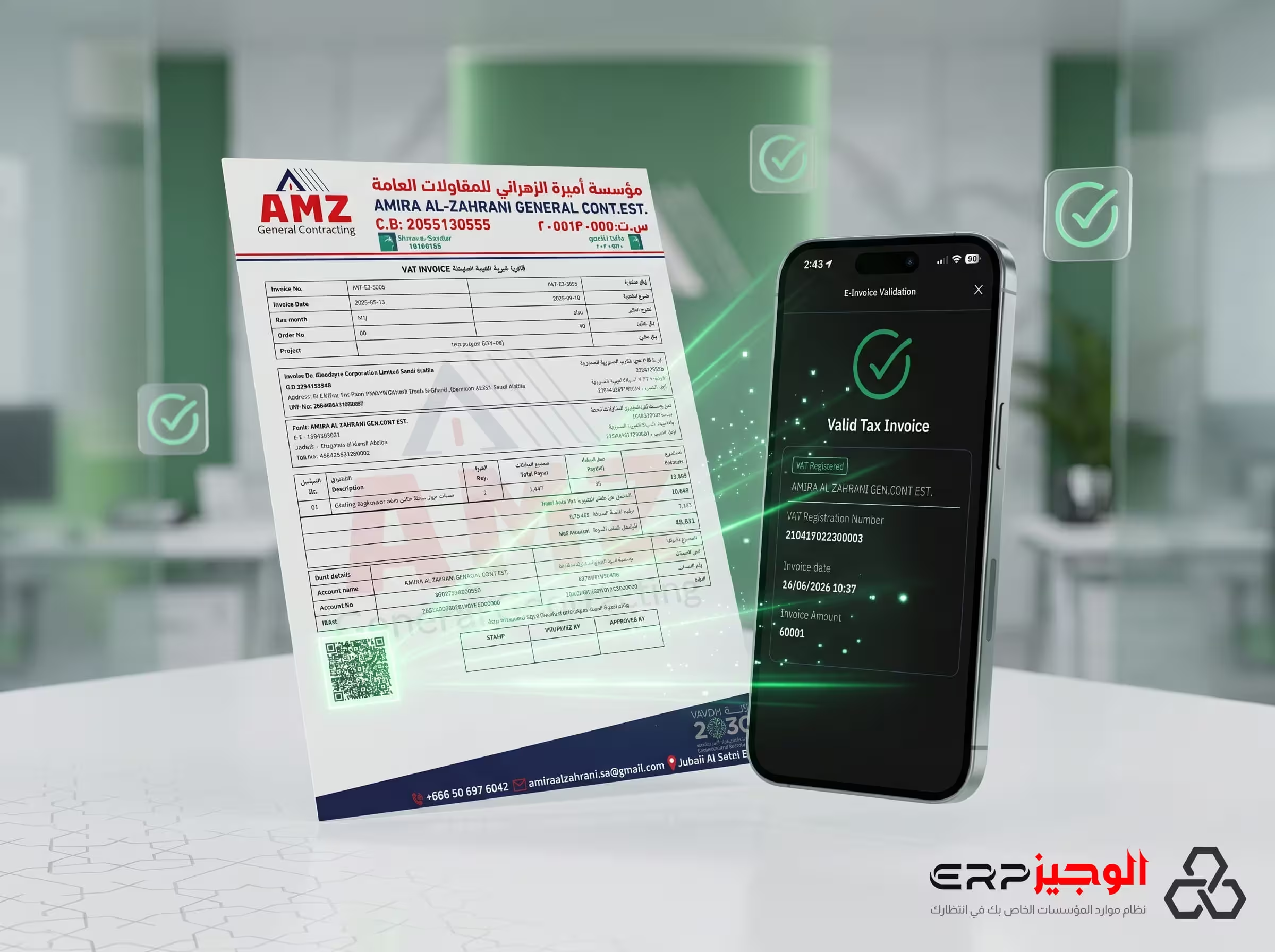
Cloud ERP with Role-Based Access Control (RBAC): The Complete Guide 2025
When a warehouse clerk accidentally deletes a financial ledger entry, or a sales rep views another customer's pricing, or a former employee's account remains active weeks after resignation — these are not rare edge cases. They are predictable failures of inadequate ERP access control. In 2025, with ZATCA mandating strict data security for e-invoicing systems and Saudi businesses scaling across multiple branches and user types, cloud ERP with role-based access control (RBAC) is a compliance and operational necessity, not an IT luxury.
This guide explains RBAC in plain language, shows how it is implemented in a cloud ERP like ALZERP, and provides the concrete use cases and compliance benefits that justify the configuration effort.
[Screenshot: Role creation interface in a cloud ERP system]
What Is Role-Based Access Control (RBAC) in ERP?
Role-Based Access Control is a permission management model where access to system functions and data is determined by a user's role rather than by individual account settings.
Instead of configuring permissions user by user — a process that becomes unmanageable as teams grow — you define roles (Accountant, Warehouse Staff, Branch Manager, System Admin) and assign a set of permissions to each role. Users are then assigned to one or more roles, inheriting those permissions automatically.
RBAC separates three concepts that are often confused:
- Authentication: Verifying who you are (username + password, or MFA).
- Authorization: Determining what you are allowed to do (RBAC's domain).
- Accounting/Audit: Recording what you actually did (activity logs).
RBAC vs Traditional ERP Permission Models
| Dimension | Traditional (User-Level) Permissions | Role-Based Access Control (RBAC) |
|---|---|---|
| Permission assignment | Per user, manually | Per role, inherited by users |
| Scalability | Breaks down at 20+ users | Scales to thousands of users |
| Onboarding new user | Re-configure permissions manually | Assign role — permissions auto-applied |
| Offboarding / role change | Risk of forgetting to revoke individual permissions | Change role assignment — all permissions update instantly |
| Audit readiness | Difficult to audit who had what permissions when | Clear, auditable role history |
| Compliance | Hard to demonstrate least-privilege to auditors | Least-privilege is documented by role definition |
How to Configure User Permissions in ALZERP: Step-by-Step
ALZERP implements granular RBAC across every module — purchasing, inventory, sales, accounting, HR, and reporting. Here is the configuration flow for a new role:
Step 1: Define the Role
Navigate to Settings → User Management → Roles → New Role. Give the role a descriptive name (e.g., "Warehouse Supervisor – Jeddah Branch"). The role name should reflect both function and, optionally, scope.
[Screenshot: Role naming and description screen in ALZERP user management]
Step 2: Assign Module Permissions
For each ERP module, set the access level:
- No Access: The module is hidden from the user entirely.
- Read Only: User can view records but cannot create, edit, or delete.
- Create & Edit: User can add and modify records but cannot delete.
- Full Access: Create, edit, and delete — typically reserved for managers.
For the Warehouse Supervisor role, a typical configuration would be:
- Inventory Management → Full Access
- Purchase Orders → Create & Edit (cannot approve above SAR 10,000 limit)
- Sales / Invoicing → Read Only
- HR / Payroll → No Access
- Accounting / Financial Reports → No Access
- Damage Reports → Full Access
- Stock Transfer → Full Access
[Screenshot: Module permission grid with read/write/delete checkboxes per module]
Step 3: Set Branch/Location Scope (Optional)
For businesses with multiple branches, ALZERP supports location-scoped roles. A user with "Full Access" to inventory can be restricted to only their assigned branch's stock records — they cannot view or edit other branches.
Step 4: Assign Users to the Role
Go to Settings → User Management → Users, select the user, and assign the appropriate role. Multiple roles can be combined if needed (e.g., a user who is both Accountant and Branch Manager at a small location).
Step 5: Test & Validate
Log in as the assigned user (use a test session) and verify that restricted modules are hidden and permitted operations work correctly. Document the role configuration for your audit trail.
Real-World Use Cases: Who Gets What Access
Use Case 1: Warehouse Staff (Stock Entry Clerk)
Their job: Receive goods, update stock levels, print picking lists.
What they need: Inventory → Create & Edit; Goods Receipt Notes → Create; Purchase Orders → Read Only.
What they must NOT see: Pricing (unit cost, margins), customer credit balances, employee salaries, financial statements.
RBAC outcome: Financial modules are hidden entirely. They cannot accidentally modify a selling price while entering a goods receipt.
Use Case 2: Accountant
Their job: Post journal entries, reconcile bank statements, generate VAT reports, manage accounts payable.
What they need: Accounting → Full Access; VAT Reports → Full Access; Purchase Ledger → Full Access.
What they must NOT see: HR salary records (unless they also run payroll), customer pricing agreements, sales-rep route data.
RBAC outcome: HR module is set to No Access. The accountant sees aggregated payroll costs as a GL entry, not individual salary breakdowns.
Use Case 3: Branch Manager
Their job: Oversee all operations at their branch — sales, inventory, collections, and customer relations.
What they need: All modules → Full Access (scoped to their branch).
What they must NOT see: Head-office financial consolidation, other branches' P&L, corporate salary structures.
RBAC outcome: The branch manager has full authority within their location boundary. Cross-branch reports require a Finance Director role.
Use Case 4: System Administrator
Their job: User management, integration configuration, backup monitoring, audit log review.
What they need: All modules → Full Access including System Settings.
Special control: System admin accounts should use multi-factor authentication (MFA) and their activity should be logged with a higher audit retention period. Even admins should not have access to modify audit logs themselves.
Compliance Benefits of RBAC in Cloud ERP
ZATCA Data Security Requirements
ZATCA's e-invoicing technical specifications require that ERP systems implementing Phase 2 maintain strict access controls over invoice generation and clearance functions. Specifically, only authorized personnel should be able to initiate, modify, or void ZATCA-cleared invoices. RBAC provides the documented permission structure that satisfies this requirement during ZATCA audits.
Test ZATCA compliance with our free ZATCA QR code generator.
ISO 27001 — Information Security Management
ISO 27001 Annex A.9 (Access Control) requires organizations to implement role-based access that enforces the principle of least privilege — users should only access information necessary for their job function. RBAC in ALZERP provides the documented control matrix required during an ISO 27001 audit.
SOC 2 Type II Compliance
SOC 2's Trust Services Criteria (CC6.1–CC6.3) require logical access controls, user access reviews, and evidence that access is promptly revoked when roles change. ALZERP's RBAC configuration, combined with activity logs, provides the evidence package auditors require. See the NIST guide to access control for the standards framework behind these requirements.
Common Mistakes in ERP Permission Setup
- Giving everyone Admin access "to save time": Creates a single-tier system with no audit trail for who changed what.
- Not revoking access when employees leave: Former staff retaining logins is a leading cause of internal data breaches. RBAC makes deactivation a single step: disable the user account.
- Copying the owner's permissions for a new manager: Owners often have legacy permissions accumulated over years. Creating a defined role prevents permission bloat.
- Ignoring branch-level scoping: A national role without location restriction means a Riyadh warehouse clerk can view Jeddah branch margins.
- Never reviewing roles: Job functions change. Set a quarterly access review as a calendar reminder to verify role assignments still match actual responsibilities.
RBAC Best Practices: An 8-Point Checklist
- Define roles by job function, not by person ("Accountant" not "Ahmad's permissions").
- Apply the principle of least privilege — start with minimum access and add as needed.
- Require MFA for all roles with financial or admin-level access.
- Scope roles to branches/locations wherever multi-location operations exist.
- Audit active user accounts and role assignments quarterly.
- Deactivate accounts on the employee's last working day, not after — set a policy.
- Log all sensitive operations (invoice voiding, price changes, user management) with timestamps and user identity.
- Document the role permission matrix and review it with your external auditor annually.
Ready to Configure Secure Access in ALZERP?
ALZERP's RBAC system is included in every subscription tier — it is not an enterprise add-on. From day one, you can define roles, scope them to branches, and assign team members in minutes. Read the ALZERP Getting Started Guide for the full onboarding walkthrough, or explore the Cloud ERP for wholesale companies feature overview to see how RBAC integrates with distribution workflows.
Contact our team to schedule a security configuration demo — we will walk through your org chart and help map the right role structure for your business size and industry before you go live.
Related Articles
ALZERP vs Al Faysal ERP: Full Comparison & Best Alternatives in 2025
Detailed ALZERP vs Al Faysal ERP comparison for Saudi wholesale businesses. Feature table, ZATCA compliance, pricing, and the best alfaysalerp alternatives in 2025.
Best ERP Software for Wholesale Distribution in 2025–2026 (Top 5 Picks)
Compare the top 5 ERP systems for wholesale distribution in 2025–2026. ALZERP, SAP, Odoo & more — features, pricing, ZATCA compliance, and a buyer checklist.
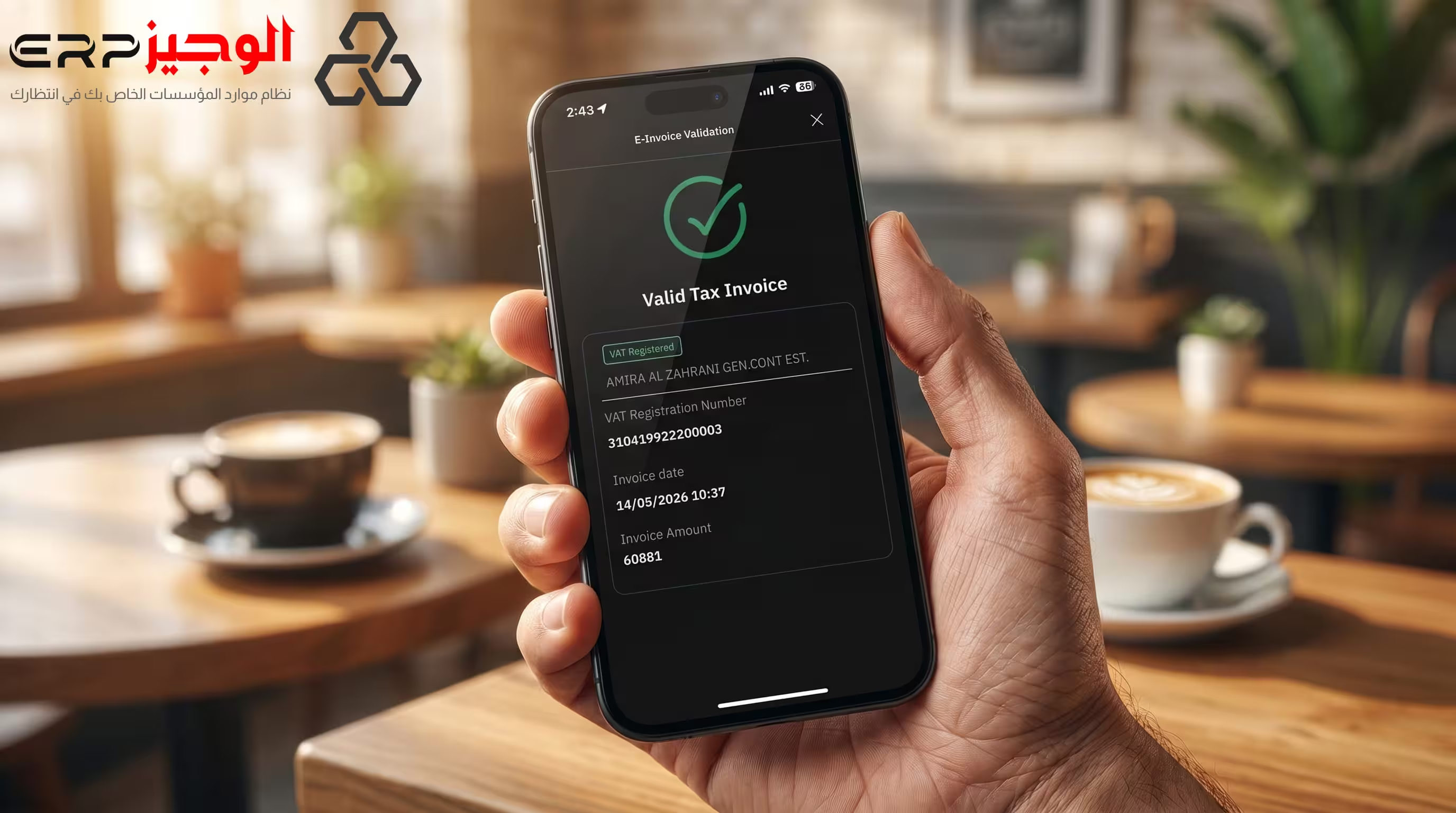
ZATCA Compliance: Online QR Code Generator & Developer Portal Integration Guide
Complete ZATCA compliance guide: generate QR codes online free, use the ZATCA developer portal for API testing, and go live with Phase 2 e-invoicing step by step.