


In this guide, you will learn how to set up a complete development environment for running your ERP project after purchasing the source code from Alwajeez Tech.
Whether you are a developer, business owner, or just getting started, this step-by-step tutorial will guide you through installing and configuring everything needed to run, test, and customize the system on your Windows 10 or Windows 11 machine.
No advanced technical experience is required — simply follow each step carefully, and you’ll have your ERP system up and running smoothly in no time. 🚀
📥 Download Development Environment Files
Download all required installer files (packaged in one archive):
📦 Extracting the Files
The downloaded file is in .7z format, which requires extraction before use.
If you do not have 7zip installed in your machine please download from 7zip website download link.
After installing:
- Right-click on
dev-env.7z - Click Extract Here or Extract to folder
✅ You’re Ready to Begin
Once extracted, you can proceed with the installation steps outlined in this guide.
Download links for the installer files all together packaged into a 7zip file:
📦 What You Received
You downloaded a file called:
dev-env.7z
After extracting, you will see:
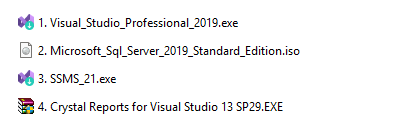
- Visual Studio 2019 Installer
- Microsoft SQL Server 2019
- SQL Server Management Studio (SSMS)
- Crystal Reports for Visual Studio
⚠️ Before You Start
✅ System Requirements
- Windows 10 or Windows 11 (64-bit)
- Minimum 8 GB RAM (4 GB works, but slower)
- At least 20 GB free disk space
- Internet connection (for installation)
📂 STEP 1: Extract the Files
- Right-click
dev-env.7z - Click Extract Here (or use WinRAR / 7-Zip)
👉 You should now see the setup files like in the image above.
🔢 STEP 2: Install Everything (IMPORTANT ORDER)
👉 Install in this exact order:
🟣 1. Install Visual Studio 2019
📁 File: Visual_Studio_Professional_2019.exe
Steps:
- Double-click the file
- Click Continue
- Wait for installer to load
Select Workloads:
✔ ASP.NET and web development
✔ .NET desktop development
👉 Click Install
⏳ This may take 15–30 minutes.
🟡 2. Install SQL Server 2019
📁 File: Microsoft_Sql_Server_2019_Standard_Edition.iso
Steps:
- Right-click the file → Click Mount
- Open the mounted drive
- Double-click Setup.exe
Choose:
👉 Basic Installation (Recommended for beginners)
Set:
- Instance name:
SQLEXPRESS(default is fine)
👉 Click Install
⏳ Wait until completed.
🔵 3. Install SQL Server Management Studio (SSMS)
📁 File: SSMS_21.exe
Steps:
- Double-click the file
- Click Install
- Wait until finished
👉 Restart your computer if asked.
🟢 4. Install Crystal Reports for Visual Studio
📁 File: Crystal Reports for Visual Studio 13 SP29.EXE
Steps:
- Double-click the file
- Click Next → Next → Install
- Accept all default settings
👉 Finish installation
⚙️ STEP 3: Setup Database
- Open SQL Server Management Studio (SSMS)
- Connect to:
Server name: .\SQLEXPRESS Authentication: Windows Authentication - Click Connect
Restore Database
- Right-click Databases
- Click Restore Database
- Select your
.bakfile (provided with source code) - Click OK
💻 STEP 4: Run the Project
- Open Visual Studio 2019
- Click Open Project
- Select the ERP project folder
- Open
.slnfile
Configure Database Connection
- Open
Web.config - Update this:
<connectionStrings>
  <add name="Connection_String"
       connectionString="Data Source=.\SQLEXPRESS;Initial Catalog=XERPz;Integrated Security=True;"
       providerName="System.Data.SqlClient" />
</connectionStrings>
Run Project
👉 Press F5
OR
👉 Click Start (IIS Express)
🌐 STEP 5: Access the ERP
Your browser will open automatically:
👉 Example:
http://localhost:12345/
🔐 Default Login (Example)
- Username:
admin - Password:
admin
(Check your database if different)
🚨 Common Issues & Fixes
❌ SQL Server Not Connecting
✔ Make sure service is running
✔ Use: .\SQLEXPRESS
❌ Project Not Running
✔ Build solution first (Ctrl + Shift + B)
❌ Crystal Report Error
✔ Make sure Crystal Reports installed correctly
🎯 You Are Ready!
Congratulations 🎉
You now have a fully working ERP development environment.
💡 Pro Tips
- Use Visual Studio to customize features
- Use SSMS to manage database
- Always backup before changes
- Test changes locally first
📞 Need Help?
If you face any issues:
- Recheck steps carefully
- Contact support (if included)
🚀 Final Note
This ERP is fully customizable.
👉 You can:
- Modify features
- Rebrand
- Build for clients
- Start your own ERP business
Alternative link for this post:👉 Just follow step-by-step. No advanced skills required.
 English
  العربية